Invite your team
Set up your organization, add people and send their invites from your Outlook.
- 1
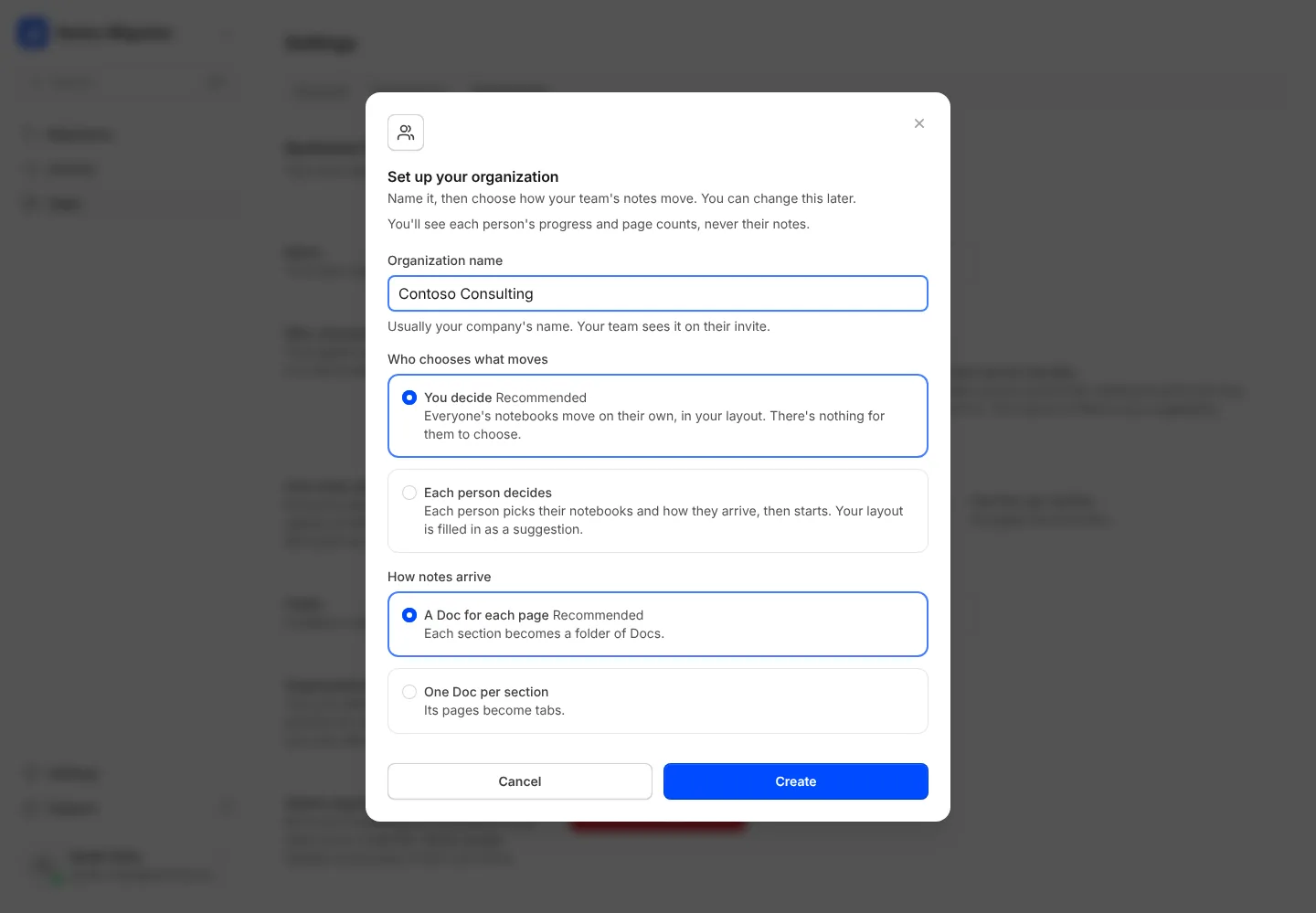
On the Team page, press Set up your organization. Give it a name, then pick who chooses what moves: you, or each person. You can change it later: press Change next to how notes move, at the top of the Team page.
- 2
Press Add people. Paste their email addresses, or choose them from your company directory.

- 3
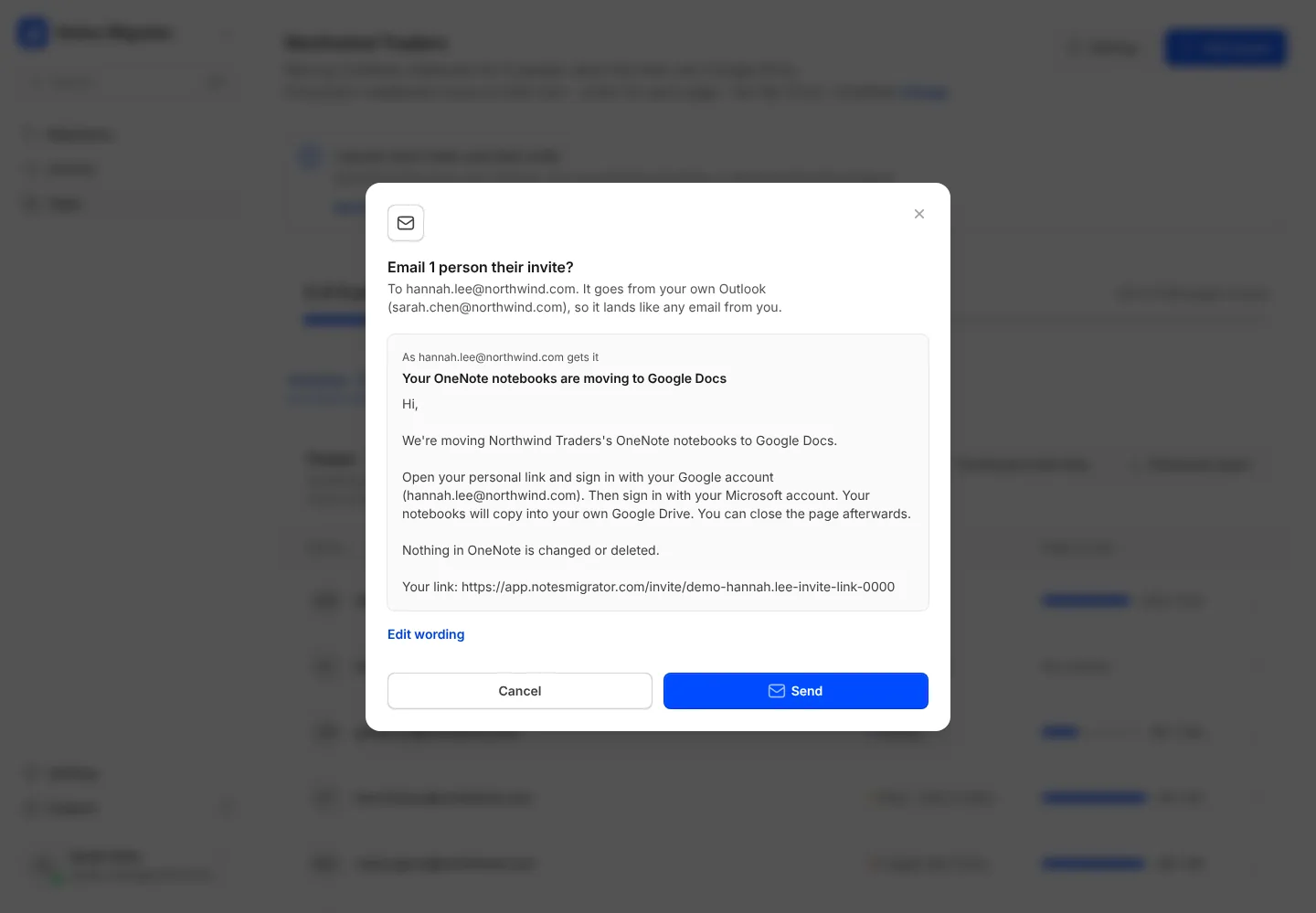
Press Send from Outlook. The email is shown filled in, as each person will get it. Press Edit wording to change it, then Send. It goes from your Outlook, and each person gets their own link.
- 4
Prefer to send the links yourself? Press Download invite links to get a spreadsheet (CSV file) with everyone’s link.
- 5
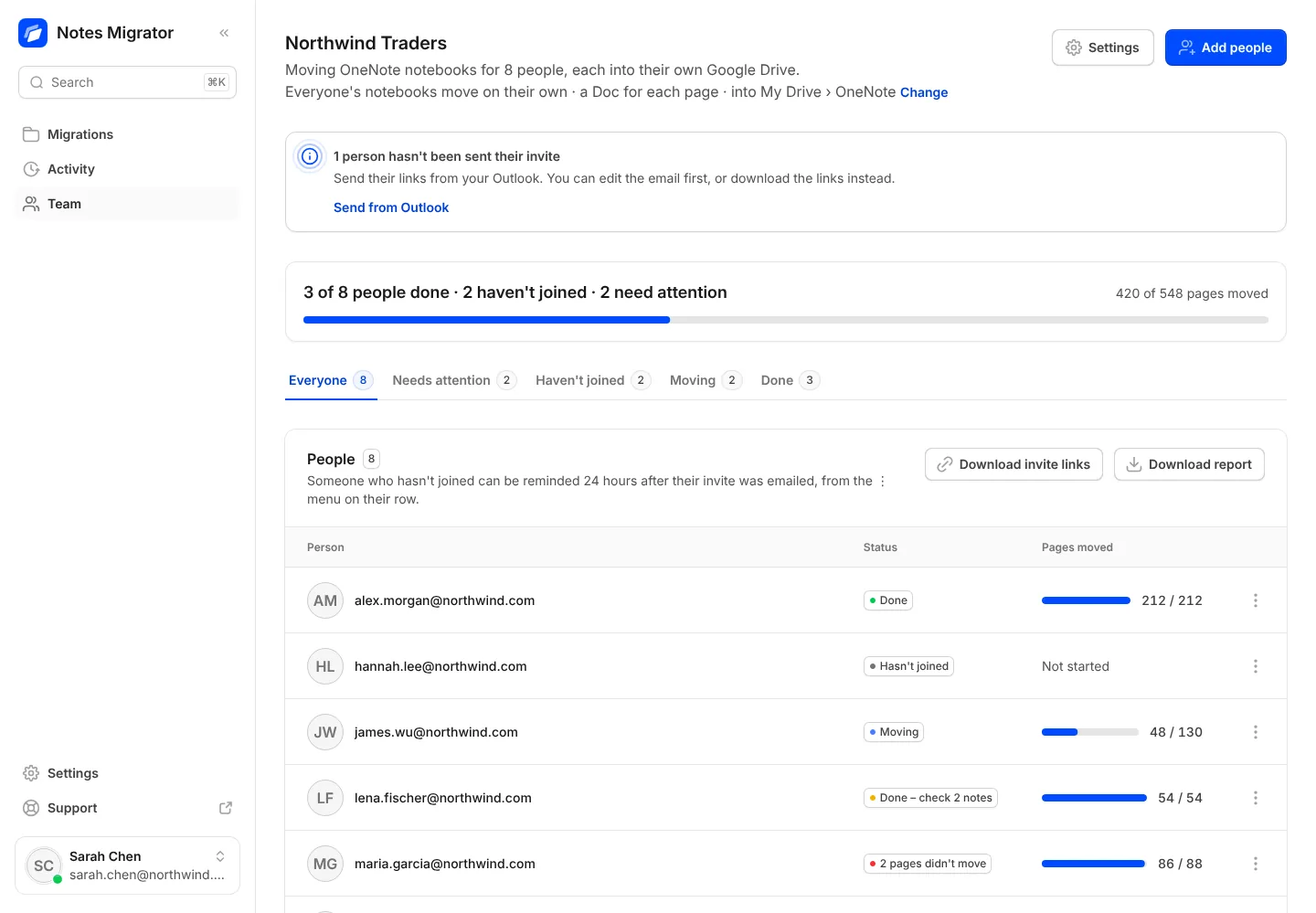
Follow everyone on the Team page: how many people are done, who hasn’t joined and who needs attention. A day after someone’s invite, choose Remind in the ⋮ menu on their row (or Send a reminder, for everyone who hasn’t joined). It also goes from your Outlook.
Bring your OneNote with you to Google
Sign in with Google, connect OneNote, and see how your notebooks will look before anything moves.