How can we help?
Short videos and step-by-step guides for every part of your move.
Topics
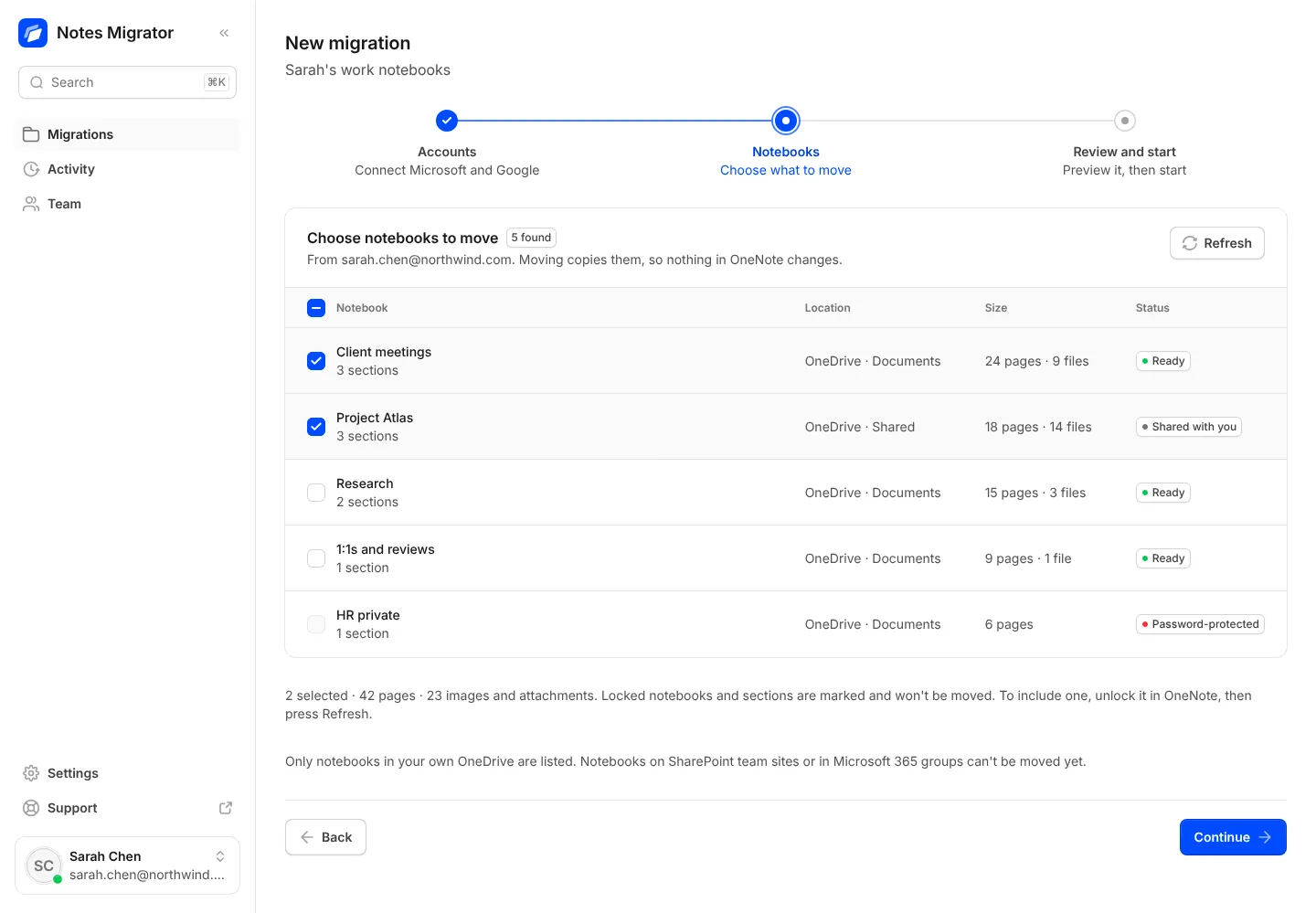 Getting startedMove your first notebook
From signing in to opening your notes in Google Docs, in five steps.
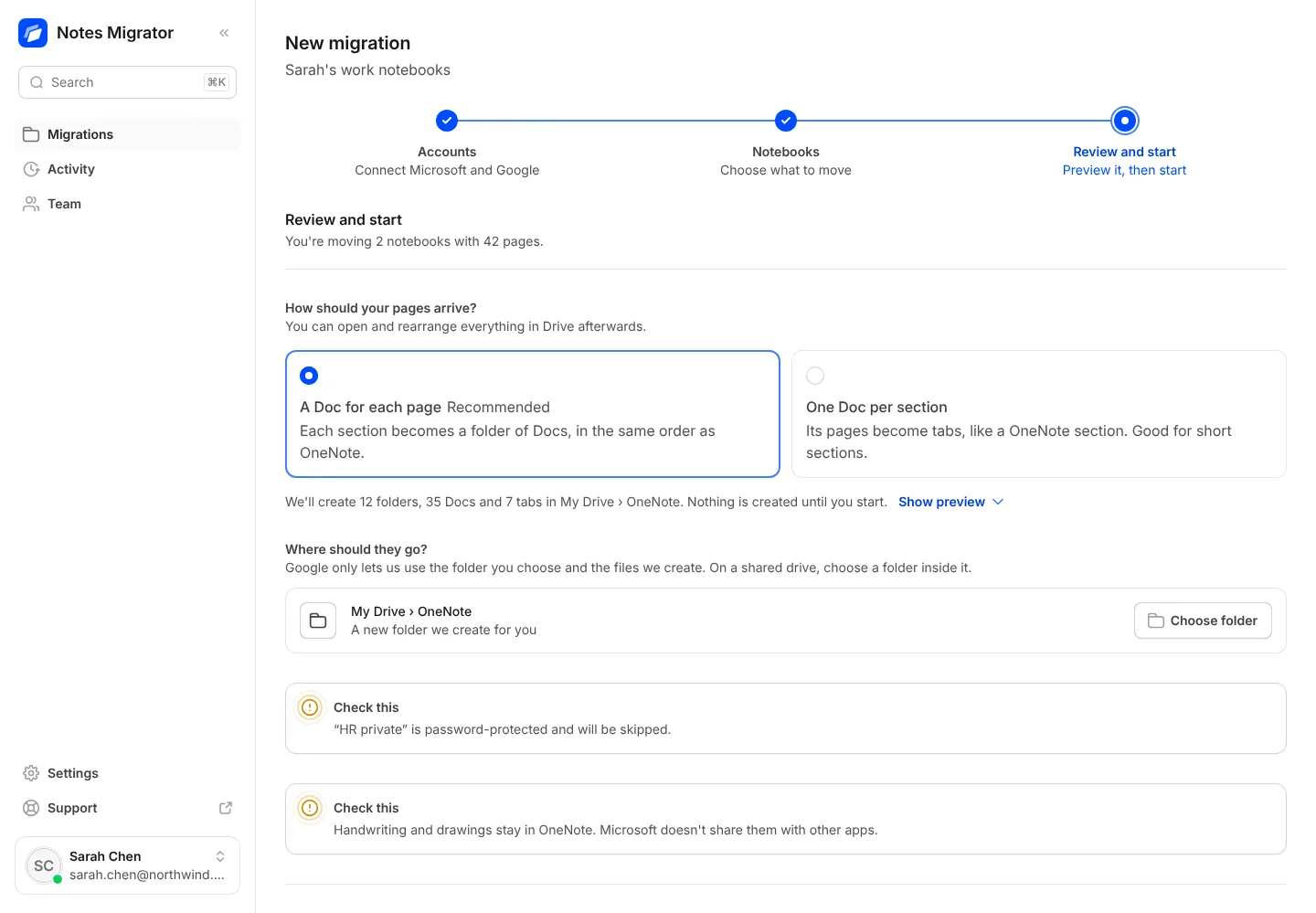 Moving your notebooksChoose how your pages arrive
A Doc for each page, or one Doc per section with pages as tabs.
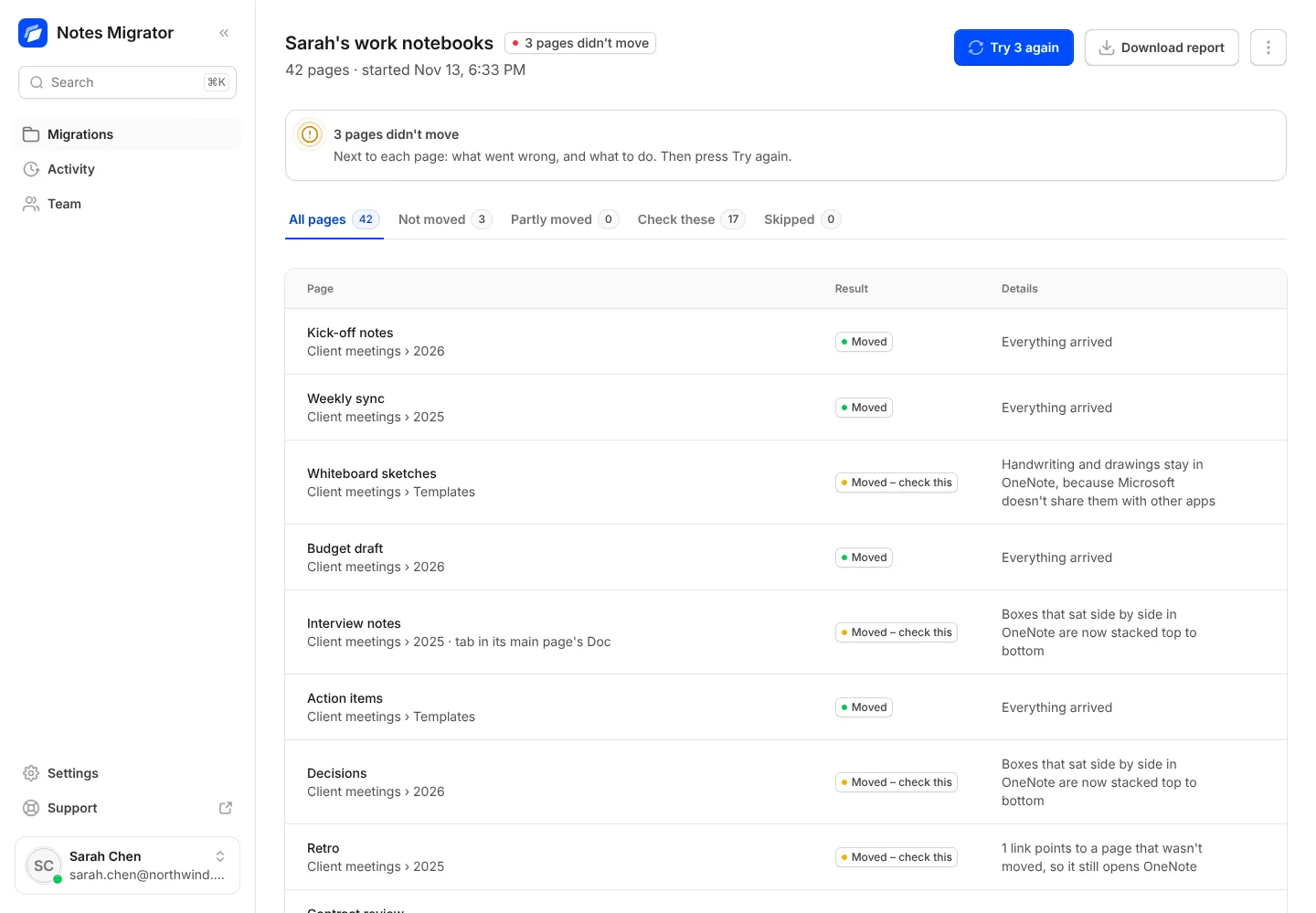 Moving your notebooksRead your report
See every page that moved, where it went, and anything to check.
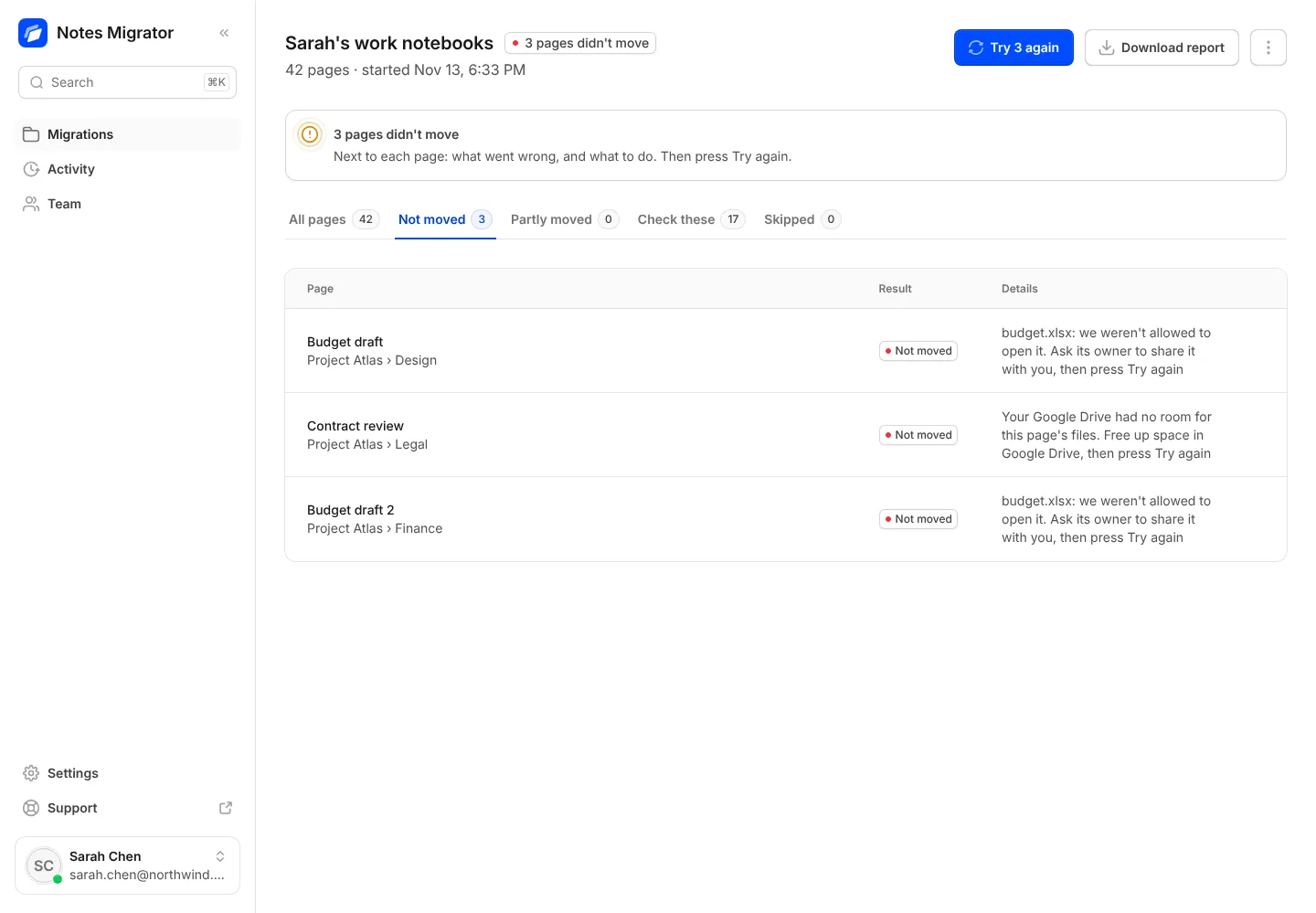 Fixing problemsTry again on pages that didn't move
Find out why a page didn't arrive, and move just those pages again.
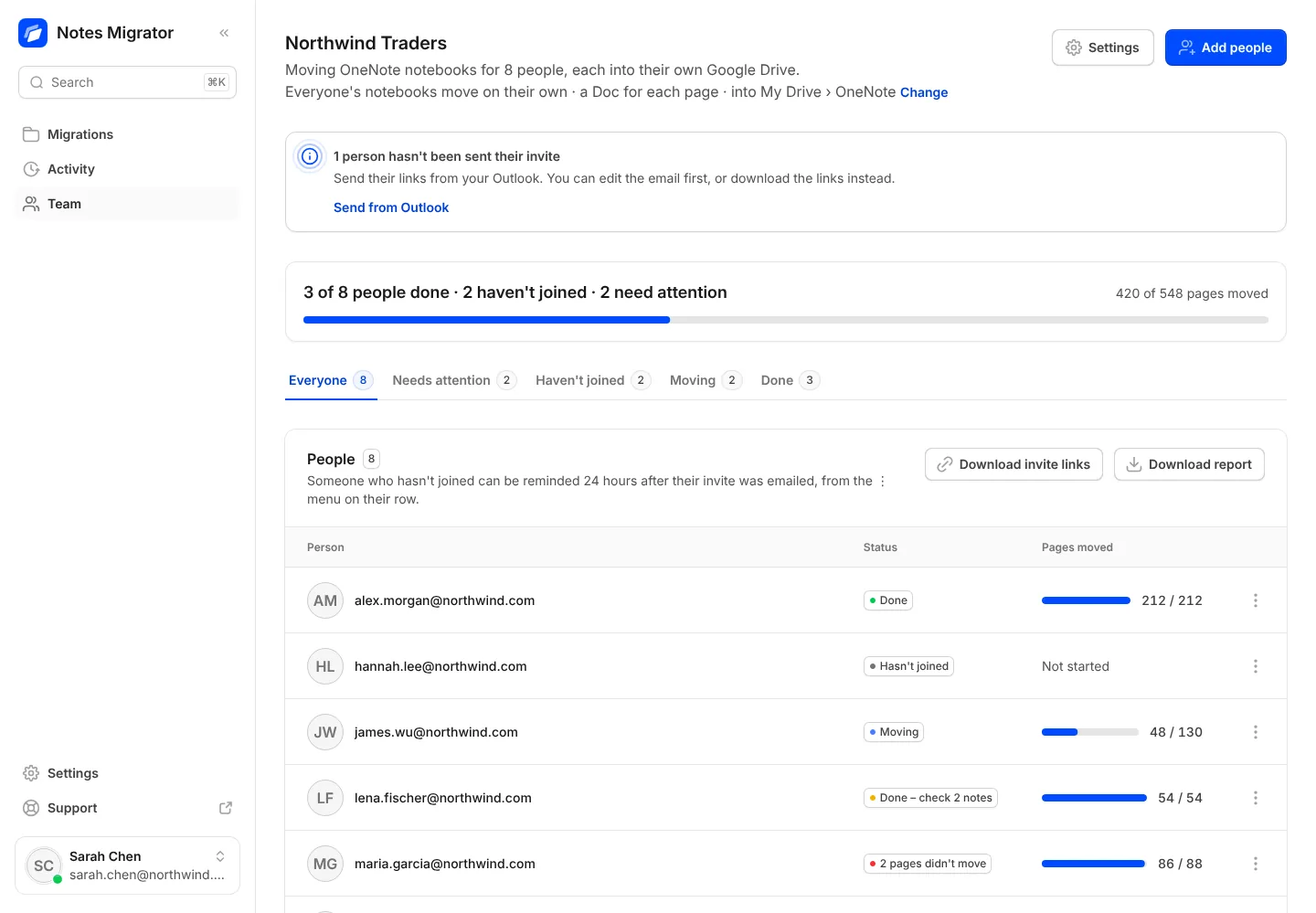 For companiesInvite your team
Set up your organization, add people and send their invites from your Outlook.
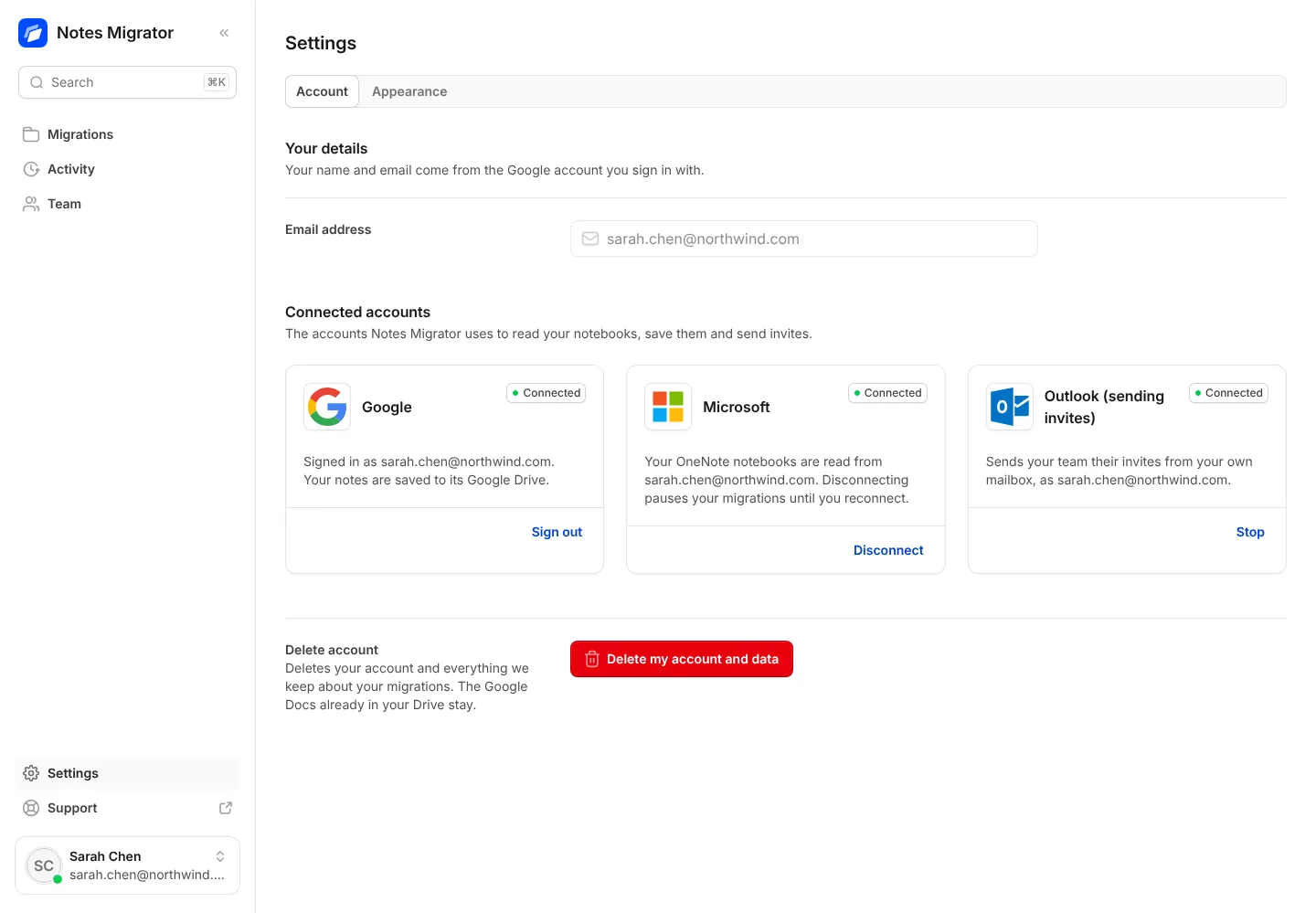 Security and privacyRemove our access
Disconnect Microsoft, stop Outlook or remove our access at Google, yourself, at any time.
Quick answers
The questions people ask most, answered in a line or two.
No. We only read your notebooks, so everything stays in OneNote exactly as it is. Keep using it until you're ready.
They stay in OneNote, because Microsoft doesn't share them with other apps. Everything else on the page moves.
It depends on how many pages you have, because Microsoft limits how fast any app can read notebooks. You can close the page. The migration keeps going.
Every page is checked after it moves. If one doesn't arrive, your report says why, and you can try it again in one click.
Yes. Pick any folder in My Drive or inside a shared drive, and see a preview of the folders and Docs first.
Notebooks in your OneDrive. Notebooks on SharePoint team sites or in Microsoft 365 groups aren't supported yet.
Open the link in their invite and sign in with Google and Microsoft. If you decide what moves, their notebooks then move on their own. If each person decides, they pick their notebooks first.
Still have a question?
Write to us at support@notesmigrator.com and a real person will reply.
Bring your OneNote with you to Google
Sign in with Google, connect OneNote, and see how your notebooks will look before anything moves.