Move your first notebook
From signing in to opening your notes in Google Docs, in five steps.
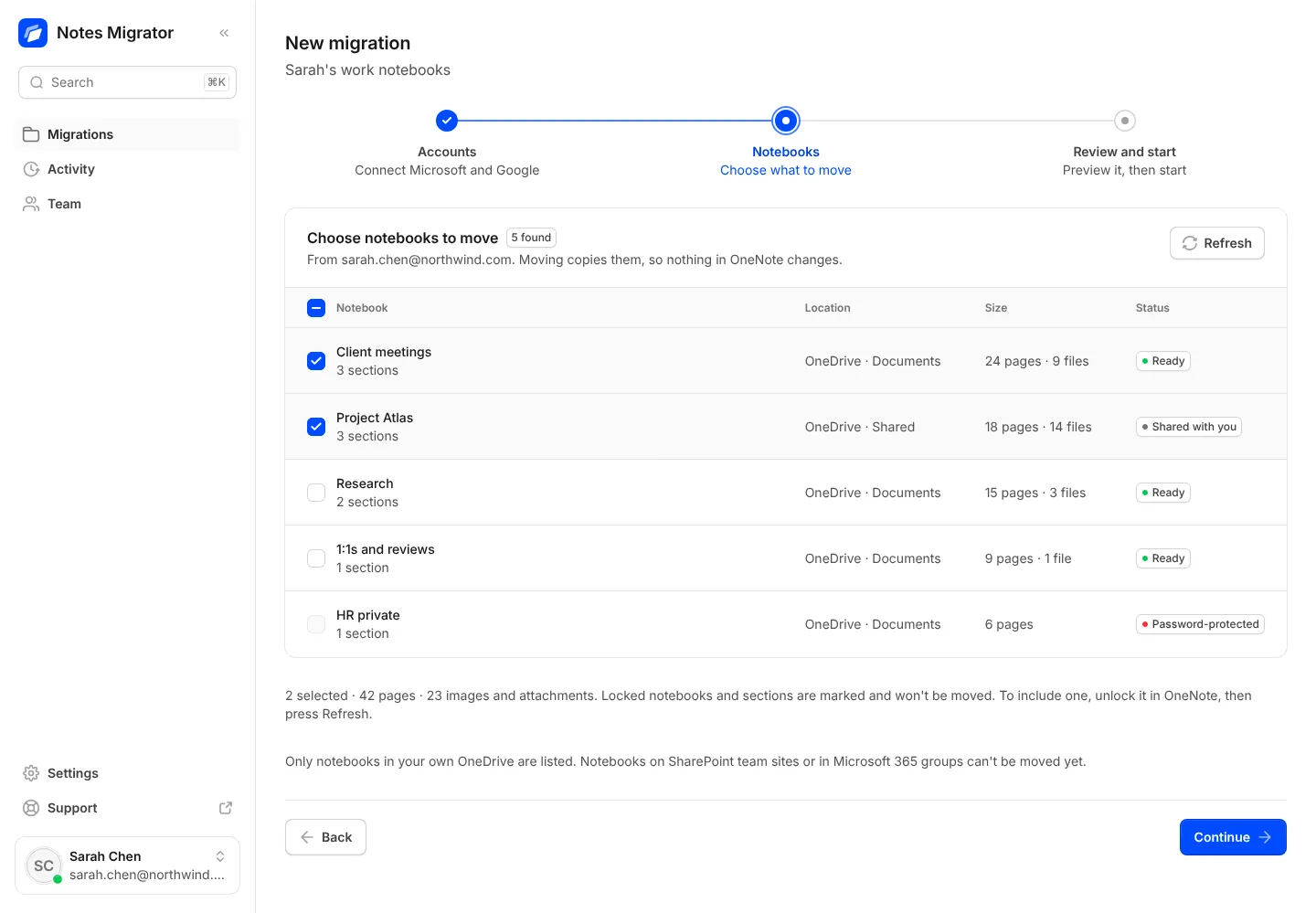
- 1
Sign in with the Google account whose Drive your notes should go to.
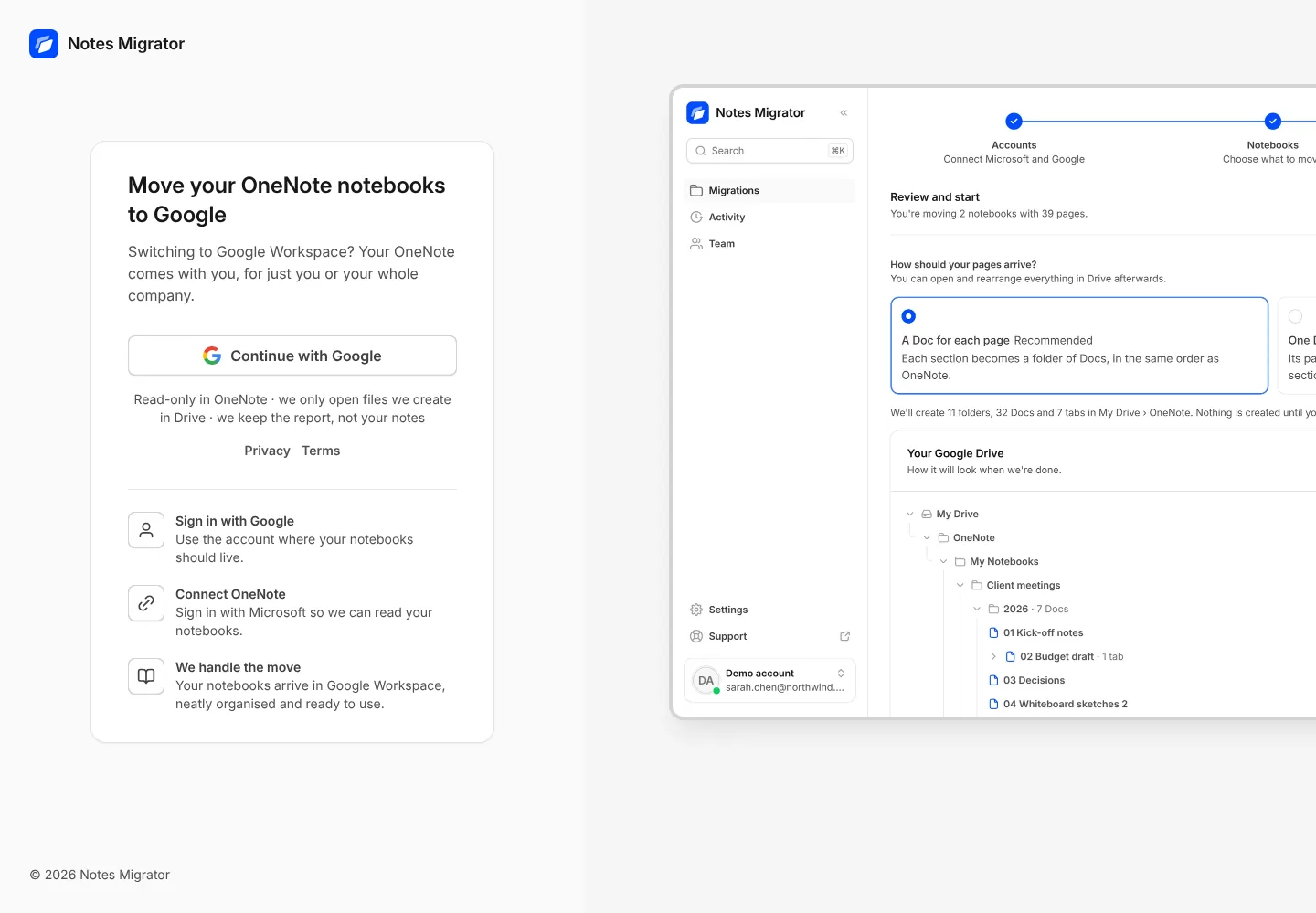
- 2
Press New migration, then Connect Microsoft to link your OneNote. Next, tick the notebooks you want to move.
- 3
Choose a layout and a folder. Show preview lists the folders and Docs we’ll create in Drive.
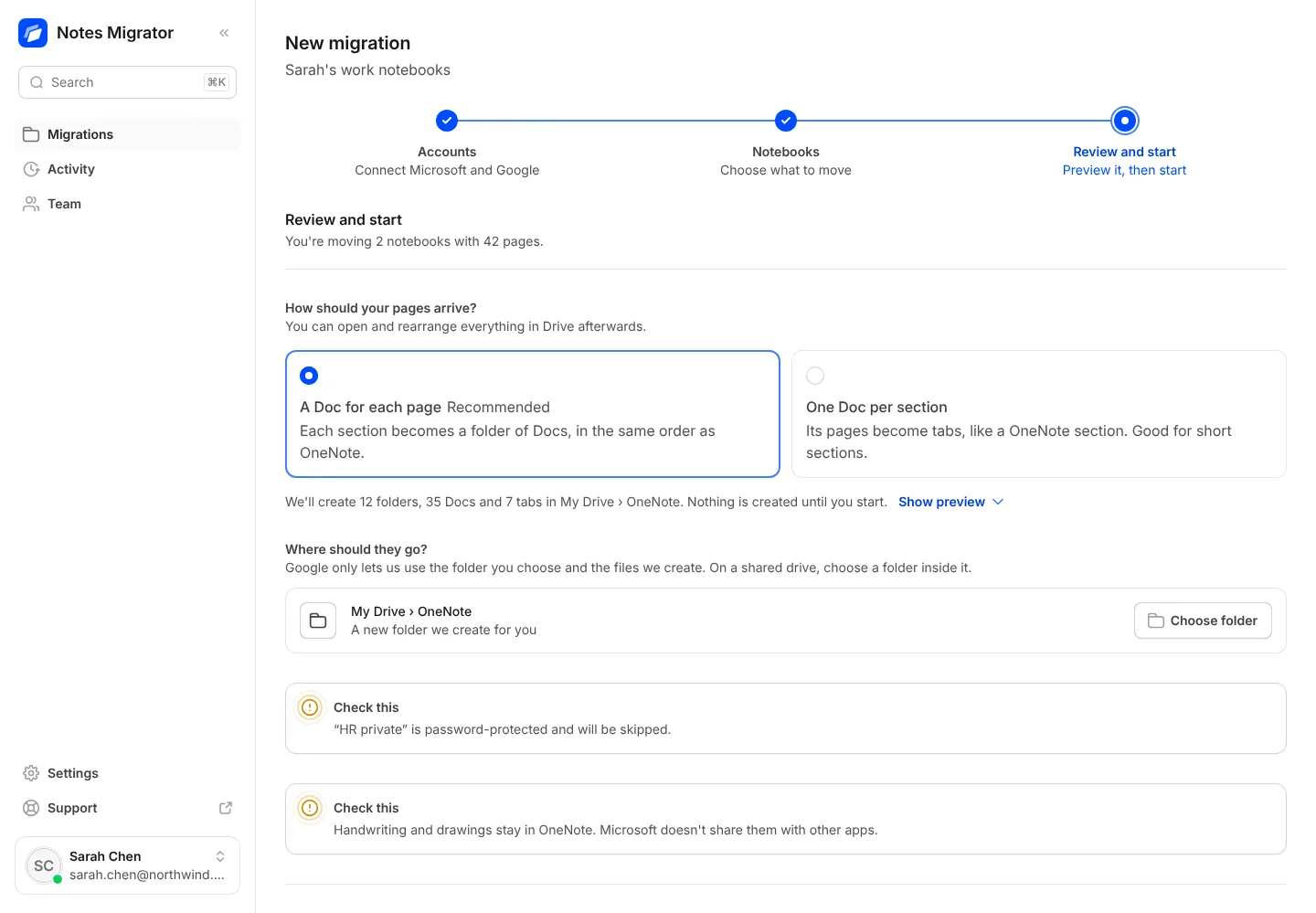
- 4
Press Start moving. One bar shows how many pages have moved. You can close the page. The migration keeps going without you, and you can Pause or Stop moving at any time.
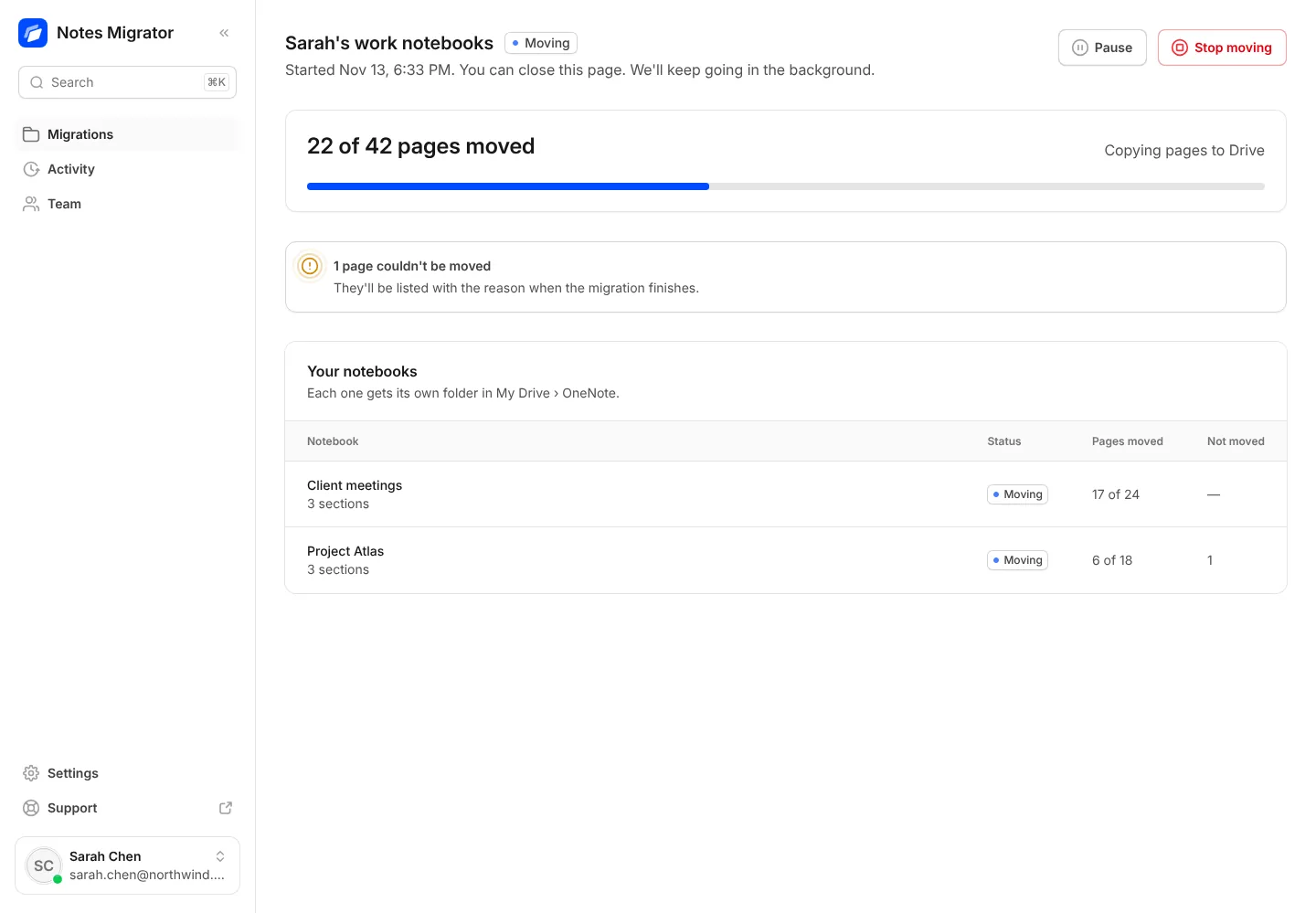
- 5
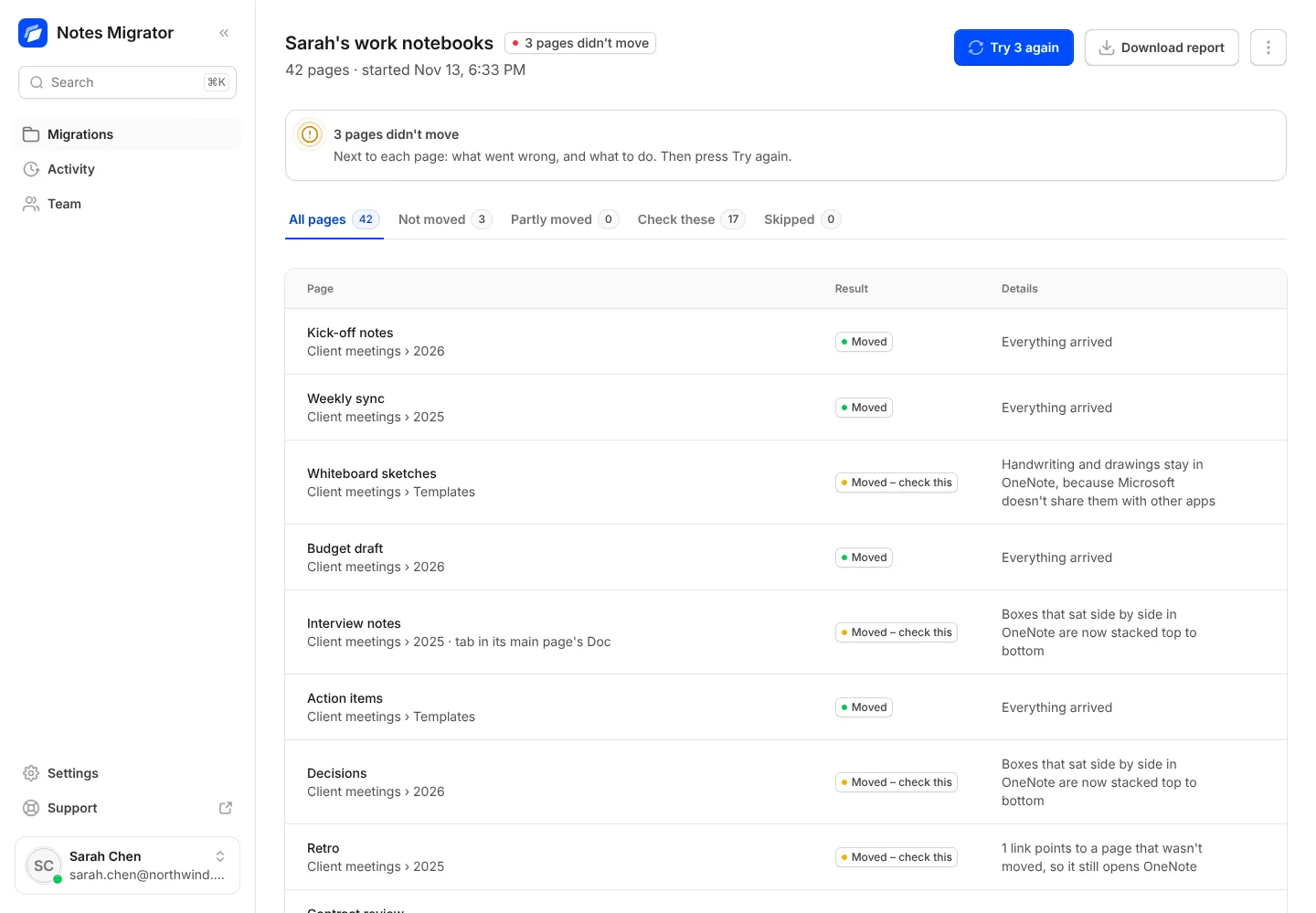
When it’s done, the migration page lists every page and its result: Moved, Moved – check this, or Not moved. Open in Google Drive takes you to your notes.
Bring your OneNote with you to Google
Sign in with Google, connect OneNote, and see how your notebooks will look before anything moves.